
This article applies to Customer Portal v3 (CPv3). If you're using Customer Portal v2 (CPv2), refer to our help docs here.
The Customization page controls what your subscribers see in the Customer Portal and how it looks. You can arrange the page layout, choose which self-service actions subscribers can take, and match the portal to your brand, all with a live preview before anything goes live.
Before you start
Changes are saved as a draft: Nothing changes for subscribers until you click Publish. After you publish, changes can take up to a minute to appear, and subscribers with the portal already open see them after they reload.
There's no version history: Publishing replaces your live settings. Note your current setup before making large changes so you can restore it manually if needed.
Settings apply store-wide: Blocks, actions, and style apply to every subscriber. Some actions are hidden automatically when they don't apply to a subscription, like quantity changes on prepaid subscriptions.
Portal rules live on a separate page: Settings like the minimum subscription age, out-of-stock handling, payment options, banners, and loyalty visibility are in Storefront > Portal Settings. Learn more in Configuring Customer Portal settings.
What is the Customization page?
The Customization page is where you design the Customer Portal. It has three tabs, with a live preview on the right that updates as you make changes.
Blocks: The sections on the subscription page and the order they appear in.
Actions: What subscribers can do on their own, like skip, pause, or swap, and where each option appears.
Style: Colors, borders, the login page image, and custom CSS.
To open it, in the left-hand menu of your Skio Dashboard, go to Storefront > Customization.
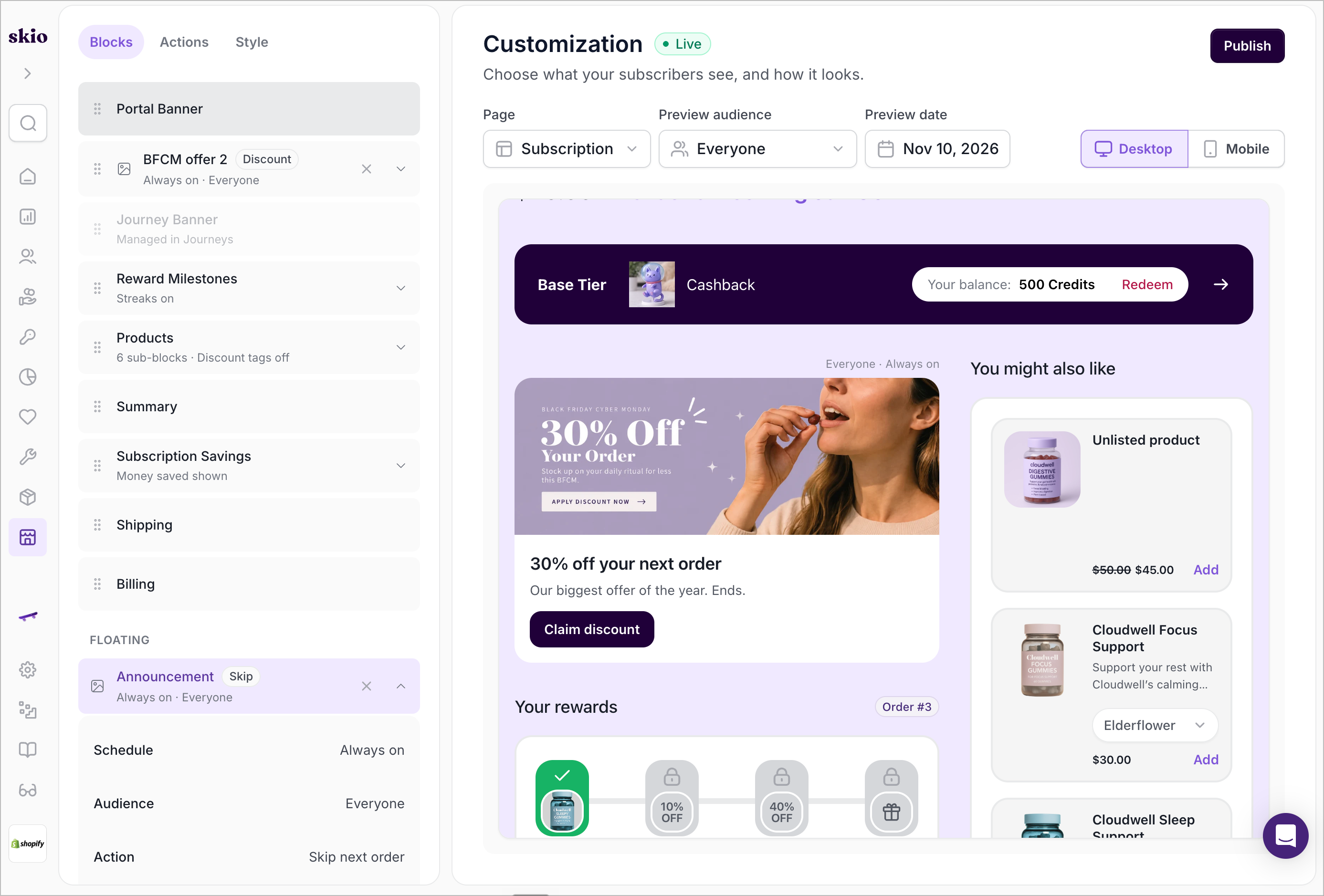
The Customization page, with the Blocks tab and live preview.
How do I preview my changes?
Use the controls above the preview to see the portal the way different subscribers will.
Page: Switch the preview between the Subscription, Overview, Orders, Login, and Loyalty pages. Your settings apply to every page; this only changes what you're looking at.
Preview audience: See the portal as Everyone, or as the audience of a campaign you've placed, to check which campaigns each group sees.
Preview date: See how campaigns look on a specific date, including their schedule, timing, and countdown.
Desktop and Mobile: Switch between layouts.
The preview uses sample subscriber data. Learn more in Understanding the live preview.
How do I customize blocks?
Blocks are the sections of the subscription page. In the Blocks tab, drag blocks by their handle to reorder them, and click the arrow on a block to open its settings.
Built-in blocks
Built-in blocks are always part of the layout. You can reorder them, but you can't remove them.
Portal Banner: Sets where your custom banner appears. Upload the banner image and link in Portal Settings > Custom banner. The banner is hidden if no image is uploaded.
Journey Banner: Sets where Journey banners appear. What the banner shows is managed in Retain > Journeys.
Reward Milestones: Shows subscribers their upcoming Surprise & Delight rewards. It only displays if you have Surprise & Delight rules set up. Use Show in portal to turn it on or off, and Streak badge to show how many orders in a row a subscriber has kept without skipping.
Products: The items on the subscription. See Products block below.
Summary: The order total, including discounts.
Subscription Savings: Use Money saved to show subscribers how much they've saved compared to one-time prices.
Shipping and Billing: The subscription's shipping address and payment details.
Products block
The Products block has its own sub-blocks that you can drag to reorder: Items, Suggestions (Mobile), Surprise and delight, Add product, Volume Discounts, and Campaign.
Discount tags: Shows a "Discount applied" label on discounted items.
Suggestions (Mobile): Click to set how often the product suggestion carousel rotates (3 to 15 seconds) and to turn on Social proof, which shows how many other customers have a suggested product. Set Minimum customers to only show social proof above that number.
Add additional blocks
Click Add block to add one of the following:
Campaign: A promotional banner, either in the layout or as a floating banner pinned to the bottom of the subscription page. Floating banners appear under Floating in the Blocks tab, and you can place one at a time. Learn more in How to set up Customer Portal campaigns.
Custom block: Your own HTML, CSS, and JavaScript. Learn more in Understanding custom blocks.
Saved: A campaign or custom block you've already created but haven't placed.
Campaigns and custom blocks save as soon as you create or edit them. Adding one to the layout, removing it, or moving it takes effect when you publish.
How do I configure actions?
Actions are the self-service options subscribers have in the portal. In the Actions tab, use the toggle to turn an action on or off, and click the arrow to see its settings.
Turning an action off only removes it from the portal. Your team can still take any action on a subscriber's behalf from the Skio Dashboard, with the exception of Pausing.
Choose where each action appears
Most actions have a Placement setting:
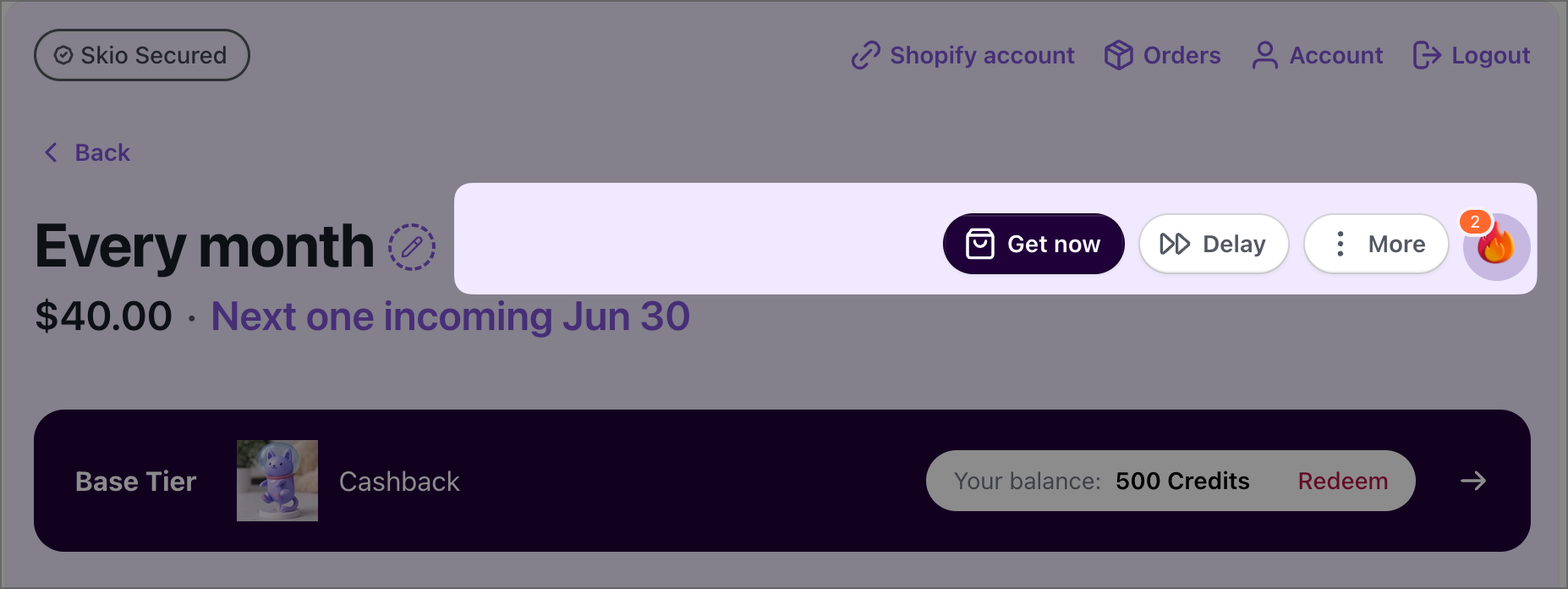
Main bar: A button at the top of the subscription page, for the actions subscribers use most. On mobile, these buttons wrap onto additional lines.
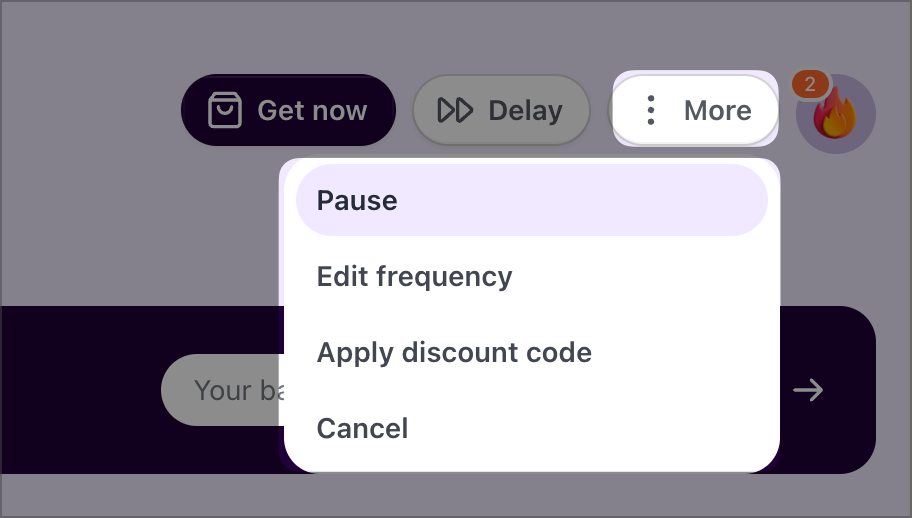
More menu: An option inside the More button, for secondary actions.
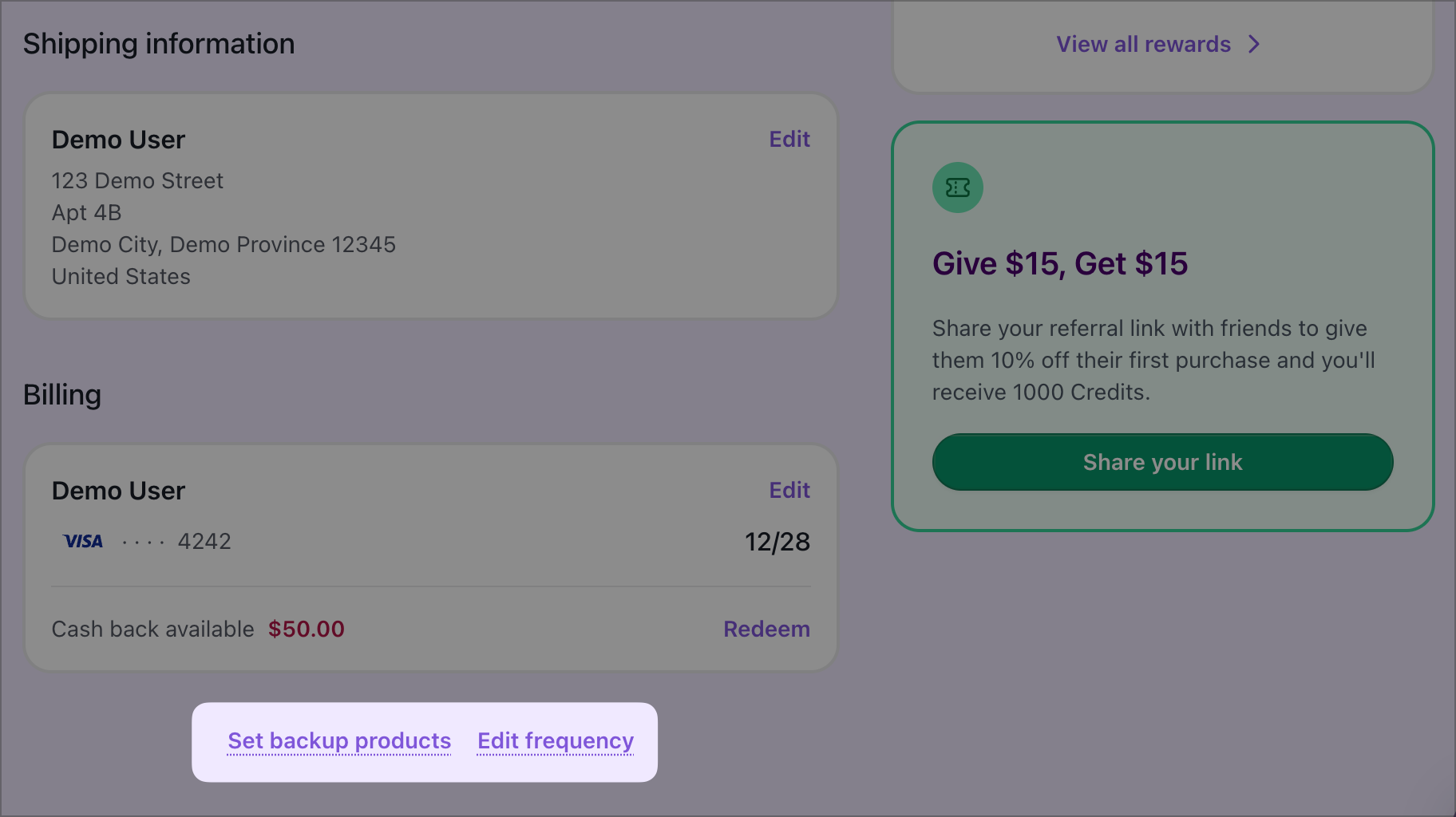
Footer: A quiet text link under the subscription.
Available actions
Action | What it does |
|---|---|
Get now | Bills and ships the next order immediately, then moves the next billing date forward by one interval. |
Skip next order | Pushes the next order out. The schedule continues after the skipped cycle. See Skip and pause options. |
Split | Breaks one subscription into two, each with its own billing date and items. |
Next order date | Lets subscribers pick the exact date of their next order. Later orders follow the normal interval from that date. |
Merge | Combines two subscriptions into one with a single billing date. |
Pause subscription | Stops billing without cancelling. Choose Indefinite (until the subscriber resumes) or Temporary (preset lengths that resume automatically). |
Edit frequency | Changes how often the subscription bills, starting next cycle. Presets come from your selling plans. Turn on Custom interval to let subscribers enter their own (not offered on prepaid). |
Apply discount | Lets subscribers enter a discount code for upcoming orders. Turning it off hides the discount field but doesn't remove discounts already applied. |
Reschedule orders | Sets how far ahead subscribers can move an order. See Reschedule limits. |
Cancel | Opens your cancel flow before anything is cancelled. Choose Footer to show it as a quiet link. |
Product backups | Lets subscribers choose a substitute for out-of-stock items. Requires Backup products in Portal Settings. Place it in the Main bar or More menu. |
Add product | Lets subscribers add an item that recurs from the next order on. Also shows an Add product button on subscription cards on the overview page. |
Swap product | Replaces a product or variant. Price and discounts recalculate on the next order. |
Product skip | Removes one item from one upcoming order, using a Skip button on the product card. |
Product quantity | Lets subscribers change how many units ship each cycle. When off, a Remove item button shows instead. Not offered on prepaid. |
Gift on skip | Adds a Gift order option when skipping. The subscriber is charged right away, the order ships to the recipient immediately, and the schedule restarts from that day. Requires Skip next order. Learn more in Gift on skip. |
Skip and pause options
Skip next order and temporary pauses let subscribers choose from up to three options you set. Choose an Interval type, enter a value, and click Add.
Billing multiplier: A multiple of the subscription's interval. For example,
1×on a monthly subscription is one month. Half steps like1.5×are allowed.Fixed interval: A set number of days, weeks, or months, like
2 weeks.
Skip needs at least one option for subscribers to confirm a skip.
Reschedule limits
Reschedule orders doesn't have its own toggle. Whether subscribers can change their order date is controlled by Next order date.
Billing date limit: The maximum number of days from today a subscriber can move an order. This applies everywhere subscribers change dates, including frequency changes and your cancel flow.
Any-date override: Lets subscribers pick any date within the limit, even if the product's selling plan normally restricts which days orders can bill.
To keep skips within the same limit, turn on Limit skips to the reschedule window in Portal Settings > Skips.
How do I customize the portal's style?
The Style tab controls how the portal looks on every page.
Colors
Click a color to change it. Colors are grouped into Brand, Surfaces, Text, Buttons, and States.
Shuffle colors: Sets every color to a random value. Useful for exploring ideas, but check contrast before publishing.
Reset colors: Returns every color to Skio's defaults.
Borders
Use the Border strength and Corner radius sliders to adjust the outline thickness and roundness of cards and buttons.
Splash image
The splash image appears on the portal's login page. Upload a Desktop image at 1200 × 1600 (3:4), which fills a tall column beside the login form, and a Mobile image at 1200 × 400 (3:1), which sits above the form. If you upload only one, it's used for both.
Custom CSS
Add CSS to override the portal's default styles on every page. Click the expand icon for a larger editor. To target a specific element, use its data-skio-name attribute.
To test CSS before showing it to everyone, add email addresses to Test emails. Your CSS only applies for those subscribers until you clear the list. This is the same list as Test scope in Portal Settings.
How do I publish my changes?
When you're happy with the preview, click Publish in the top right. The status changes from Draft to Live.
To undo everything since your last publish, click Discard draft. Unpublished changes are lost if you leave the page or reload, so publish or discard before you move on.
Best practices for customizing the Customer Portal
Keep the Main bar focused: Put the two or three actions subscribers use most in the Main bar and move the rest to the More menu.
Offer alternatives to cancelling: If you place Cancel in the Footer or set a minimum subscription age, keep Skip next order and Pause subscription easy to find.
Keep skip and pause options simple:
1×and2×cover most needs.Test custom CSS first: Use Test emails to check your CSS before it reaches every subscriber.
Check both layouts: Preview on Desktop and Mobile before publishing.
FAQ
Customer Portal customization FAQ
Can I show different blocks or actions to different subscribers?
Blocks and actions apply to every subscriber. To show content to a specific group, use a campaign with an audience.
What happens if I turn off an action subscribers are already using?
Turning off an action only stops subscribers from using it going forward. It doesn't undo anything they've already done.
Why isn't the Reward Milestones block showing?
Reward Milestones only displays if you have Surprise & Delight rules set up and Show in portal is on.
I published my changes. Why don't subscribers see them?
Changes can take up to a minute to appear. Subscribers who already have the portal open need to reload the page.
Can I restore a previous version of my portal?
No. Publishing replaces your live settings, and previous versions can't be restored. You can see what changed and who changed it in the Activity Log.