Gift on skip lets your subscribers send an order to someone else as a gift, instead of skipping it. When a customer would otherwise skip a delivery, they can choose to send the order to a recipient's address, keeping the subscription active and the order fulfilled.
Before you start
Gifting temporarily routes one order to a recipient address; it does not permanently update the subscription's shipping address.
The feature appears in the skip modal in your Customer Portal. In Customer Portal v3, the Skip next order action must also be turned on.
A gifted order is charged and shipped right away, and the subscription's schedule restarts from that day. Subscribers who want to keep their original billing date should skip instead.
What is Gift on skip?
Gift on skip is a feature in the Skio Dashboard that gives subscribers a way to gift an order rather than skip it. Instead of losing a recurring order to a skip event, customers can send it to any address as a one-time gift.
The gift order is charged and ships to the recipient immediately. The subscription's next billing date then recalculates from the day of the gift, and future orders go back to the subscriber's original address.
How do I set up Gift on skip?
Gift on skip is configured in your Customer Portal settings. It only takes one step to enable.
Customer Portal v3
In the left-hand menu of your Skio Dashboard, go to Storefront > Customization, then click the Actions tab.
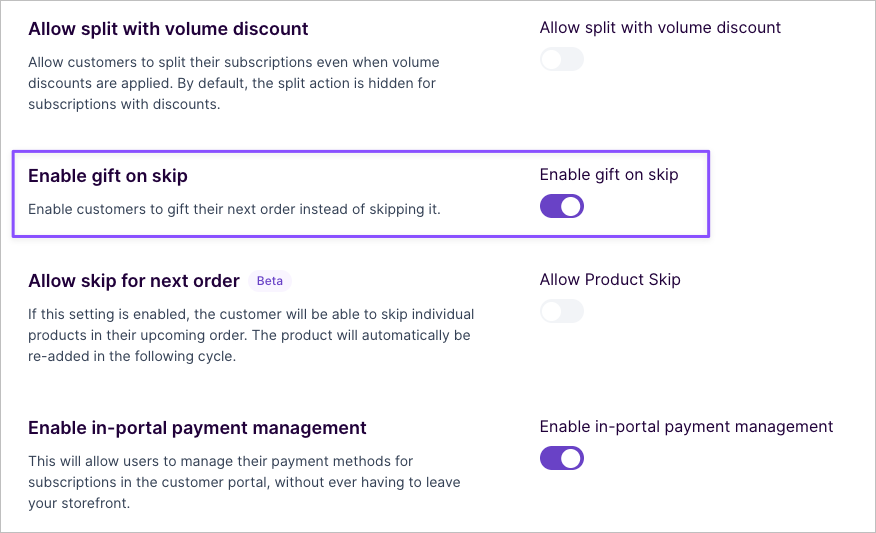
Turn on the Gift on skip toggle. Make sure Skip next order is also on.
Click Publish.
Customer Portal v2
In your Skio Dashboard, go to Storefront > Customer Portal.
Under Portal Settings, scroll down to Enable Gift on skip.
Toggle on Enable gift on skip.
What does the customer experience look like?
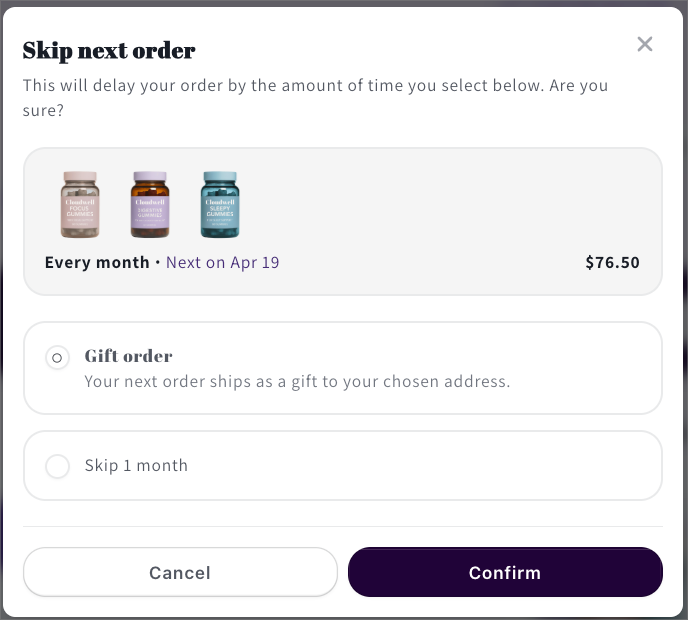
When Gift on Skip is enabled, subscribers see a Gift Order option in the skip modal the next time they go to skip a delivery.
Here's the full flow from the customer's perspective:
The subscriber opens their subscription in the Customer Portal and selects the option to Skip their next order.

Instead of confirming the skip, they select Gift Order.
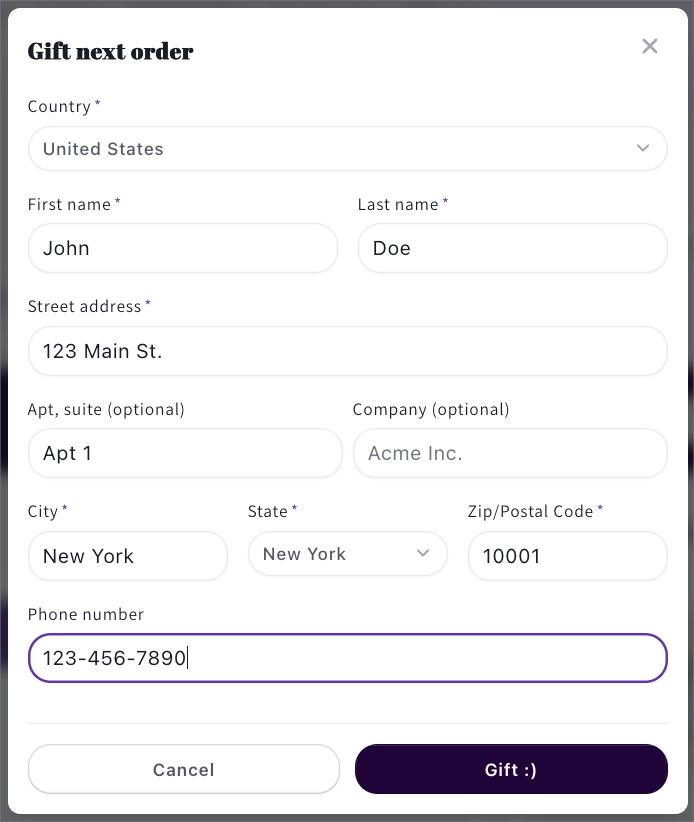
They're prompted to enter a recipient address including name, shipping address, and contact details.
The subscriber is charged right away, and the order ships to the recipient's address. In Shopify, the order is tagged
Subscription Gift Order.
After the gift, the subscription's next billing date restarts from that day, and future orders ship to the subscriber's original address on file.
How does shipping address behavior work?
Gifting an order does not change the subscription's permanent shipping address. Skio temporarily routes that order to the recipient's address and restores the original address once the order is placed. All future recurring orders continue shipping to the customer's original address on file.
FAQ
Does Gift on Skip affect the subscriber's billing cycle?
Yes. A gift order is charged when the subscriber places it, and the next billing date recalculates from that day rather than staying on the original schedule. The gift also counts as a successful order, so it adds to the subscription's cycle count and streak. Learn more in Why does the next billing date change after gifting a subscription?
Can a subscriber gift any order, or only their next one?
Gift on Skip applies to the subscriber's next scheduled order only. It's triggered from the skip flow in the Customer Portal.
Does the recipient receive a notification when the gift ships?
Skio routes the order to the recipient's address, but email notifications are sent according to your existing notification settings. The recipient's email is collected during the gifting flow and used for that order only.
Can I disable Gift on Skip after enabling it?
Yes. In Customer Portal v3, turn off Gift on skip in Storefront > Customization > Actions and click Publish. In Customer Portal v2, toggle off Enable gift on skip in Storefront > Customer Portal.