The live preview on the Customization page lets you see how your Customer Portal will look before your subscribers do. It's a useful starting point, but it has some limitations worth knowing about before you finalize your setup.
What does the live preview show?
The live preview reflects your current Customization settings, like your block layout, actions, colors, and custom CSS. It updates as you make changes, so you can get a quick sense of how your portal will look before you click Publish.
Use the controls above the preview to change what you're looking at:
Page: Switch between the Subscription, Overview, Orders, Login, and Loyalty pages.
Preview audience: See the portal as Everyone, or as the audience of a campaign you've placed, to check which campaigns each group sees. This only changes which campaigns appear; the sample subscriber data stays the same.
Preview date: See how campaigns look on a specific date, including their schedule, timing, and countdown. This doesn't affect Journey banners, Reward Milestones, or Surprise & Delight.
Desktop and Mobile: Switch between device layouts.
Learn more about each setting in Customizing the Customer Portal.
What doesn't show in the preview?
The preview is a representation of your Skio settings only. It won't reflect everything a subscriber sees in the actual portal. Specifically:
Third-party app content: Any apps or widgets installed directly on your Customer Portal — like upsell tools, loyalty widgets, or custom embeds — won't appear in the preview. These only render in a live subscriber session.
Translation updates: There's a known limitation where the preview may not reflect copy translation changes you've saved. Even if you update a label or string, the preview might still show the default text. This is a preview-only issue — your saved translations will appear correctly for subscribers.
Subscription-specific dynamic content: The preview uses sample data. Real subscriber details, order history, and dynamic content will look different in an actual session.
Shopify theme conflicts: In some cases, CSS or JavaScript from your Shopify theme can interfere with how the Customer Portal renders. These conflicts won't surface in the preview — they only appear in a live session. If something looks off in the portal but appears fine in the preview, a theme conflict is a likely cause. Reach out to Skio support if you're not sure where to start.
Warning: Don't rely on the preview alone to verify your portal before going live. Always confirm your changes in a real subscriber session.
How to verify what subscribers actually see
The most accurate way to check your portal is to view it as a real subscriber. You can do this using a magic link.
In the left-hand menu of your Skio Dashboard, go to Subscribers > Subscriptions.
Find a test subscription or your own subscriber record and open it.
Click the magic link option to open a live Customer Portal session for that subscriber.
Add
?forcePreview=trueto the end of the URL to preview your saved Customer Portal draft.Review the portal to confirm your changes are displaying as expected.
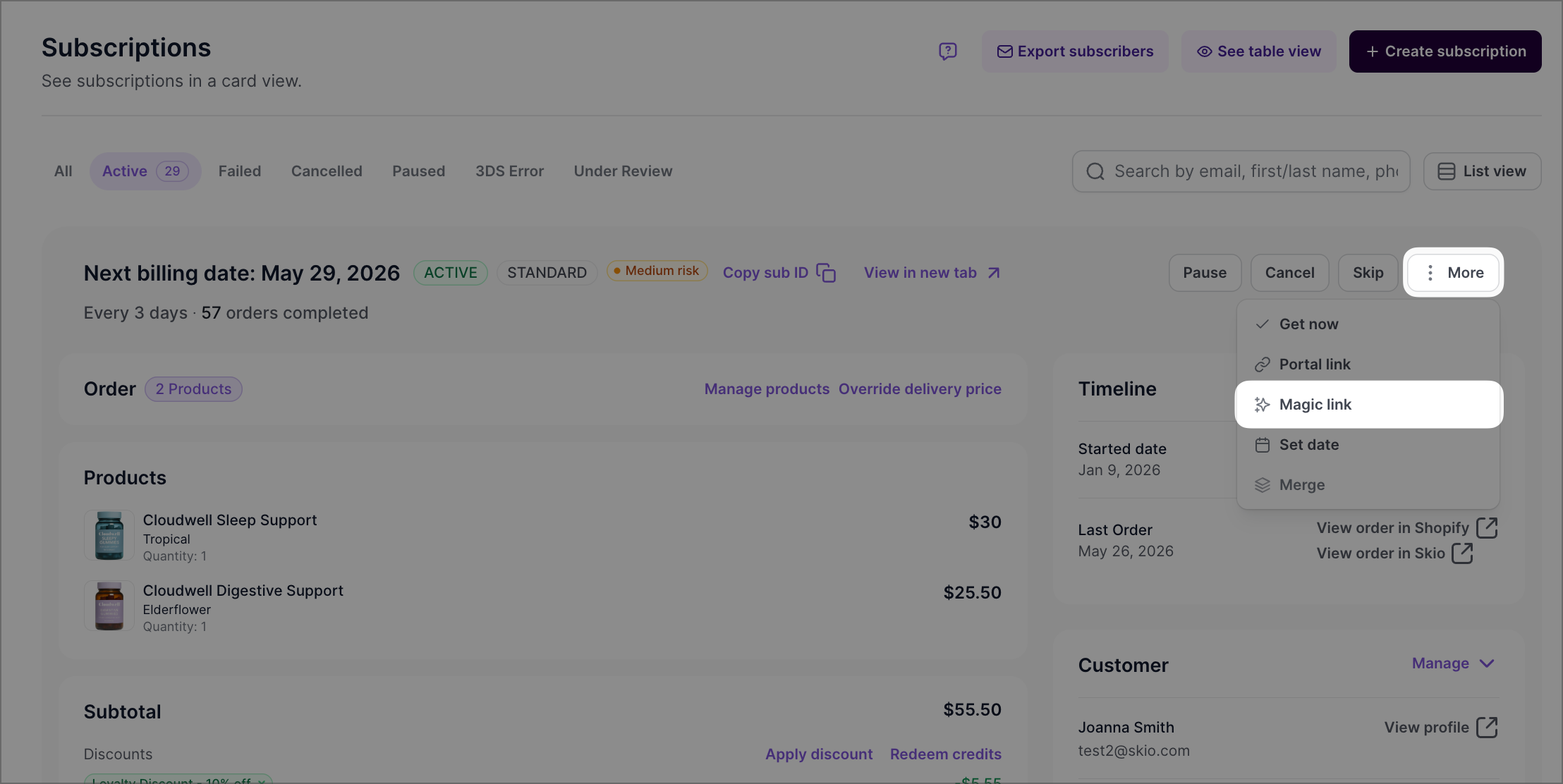
Click on the Magic link from a Subscription card to preview a live version of the Customer Portal.
Best practice: After making any significant changes to your Customer Portal — including translations, app integrations, or layout updates — open a live subscriber session to confirm everything looks right before announcing changes to your customers.
FAQ
I updated a translation but the preview still shows the old text. Did it save?
Yes, this is a known limitation of the preview. Your translation is saved correctly and will appear in the live portal. Open a subscriber session via magic link to confirm it's displaying as expected.
Will my translations carry over if I upgrade to Customer Portal v3?
Yes. Translations are stored at the store level, so they carry over automatically when you switch to Customer Portal v3. You don't need to reconfigure them after upgrading.
Why isn't my third-party app showing in the preview?
Third-party apps that are embedded in your Customer Portal only render in a live subscriber session — they can't be loaded in the dashboard preview. Use a magic link to open a real session and verify the app is displaying correctly.