Before you start
Customer Portal v3 only: Campaigns are built for Customer Portal v3 (CPv3).
Optional building blocks: If you want a campaign to target a segment or open a quick action link, create those first in Skio Dashboard > Tools > Segments or Skio Dashboard > Grow > Quick Actions.
What are campaigns?
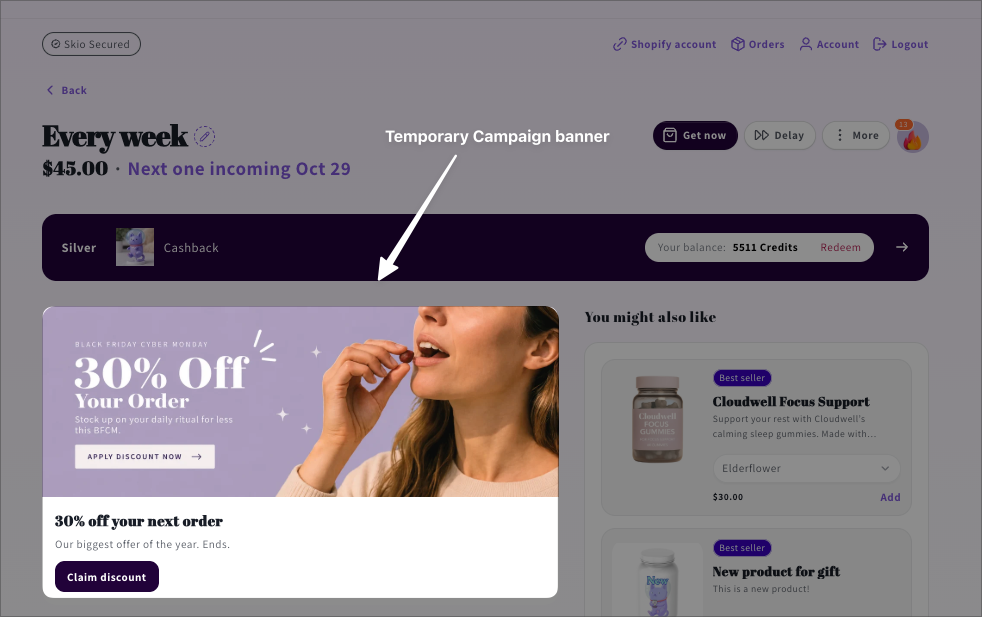
Example of a customized Campaign banner that is only live during holiday season.
Campaigns let you show targeted content or an actionable offer to specific subscriptions in the Customer Portal. You can run several at once, each with its own schedule, audience, and action, and see how many subscribers saw, clicked, and completed each one.
Campaigns are useful for reducing cancellations and driving revenue at the moment a subscriber is already managing their plan.
Campaigns are evaluated per subscription, not per customer. A customer with three qualifying subscriptions sees the campaign on each one.
How do campaigns work?
You build a campaign on the Campaigns page, then place it in your portal layout in Customization. Each campaign combines these settings:
Content: A headline, optional body copy, a button label, and optional desktop and mobile images.
Schedule: Show the campaign always, between fixed dates, or a set number of days before each subscription's next order.
Audience: Show it to everyone, to subscriptions that match up to three conditions, or to a segment.
Action: Run an in-portal action, such as skip next order, add product, or apply discount, or open a quick action link. Each campaign has one action.
Placement: Show it as a banner in the portal layout or as a floating banner pinned to the bottom of the screen. Only one floating banner can be live at a time.
Each campaign also has a Goal (Retention, Revenue, Adoption, or Awareness) that you use to filter and compare results. To build one, see How to set up a campaign.
Common use cases
Campaigns work best for offers tied to a specific moment or subscriber group.
Prevent unwanted orders: Show a skip or delay prompt three days before each subscriber's next order.
Time-limited promotions: Run a Black Friday discount with fixed dates and a live countdown. It ends on its own.
Grow order value: Offer a product add-on to subscribers who have completed a certain number of orders.
Win back paused or cancelled subscribers: Target them by status and attach an unpause or reactivate quick action link.
How do I manage campaigns?
You manage campaigns in two places: the Campaigns page for the campaign itself, and Customization for where it appears in the portal.
From the Campaigns page
In the left-hand menu of your Skio Dashboard, go to Grow > Campaigns. Open the menu on any campaign's row to manage it.
Edit: Change the content, schedule, audience, or action. You can edit live campaigns, and changes reach subscribers as soon as you save.
Duplicate: Create a copy to reuse or adapt. The copy starts as a draft with fresh results.
Create segment: Save the subscriptions that saw, clicked, completed, failed, or ignored the campaign as a static segment you can target later.
End campaign: Stop a live or scheduled campaign immediately. Ending is permanent. Discounts already applied stay on subscriptions. To run it again, duplicate it.
From Customization
In the left-hand menu of your Skio Dashboard, go to Storefront > Customization. Campaigns appear in the Blocks list alongside your other portal blocks, in the order they render. Floating banners are listed separately under Floating.
Reorder: Drag a campaign block up or down to change where it appears.
Remove from layout: Take a campaign out of the portal without losing it. It returns to Draft, and you can place it again later from Add block.
Delete: Archive the campaign. Its results are kept.
Preview: Use Preview audience and Preview date to see only the campaigns those subscriptions would see on that date.
Layout changes, like placing, moving, or removing a campaign, only reach subscribers after you click Publish in Customization.
If several campaigns apply to the same subscription, they all render in layout order. Skio doesn't rank or suppress campaigns automatically. Campaigns that don't apply to a subscription don't render, and the layout closes around them.
How do I track campaign results?
The Campaigns page shows how many campaigns are live and how each one is performing over the period you choose.
Summary cards: Live campaigns, Reach, and Completed, each compared to the previous period. Completed also shows how many actions failed.
All campaigns table: Name, Status, When, Goal, Eligible today, Reach, Clicks, and Completed.
Status: Each campaign shows as Live, Scheduled, Draft, Ended, or Archived. Campaigns that aren't in your portal layout yet show Not placed under their name.
FAQ
What happens after a subscriber completes a campaign action?
The campaign is permanently hidden for that subscription. The change logs in the subscription's activity like any other change. For example, a campaign-driven skip logs as a normal skip.
What does the subscriber see if a campaign action fails?
The subscriber sees an error message, and the campaign stays in their portal so they can try again. The attempt counts as failed in your results.
Do discounts or products added through a campaign stay after it ends?
Yes. When a campaign ends, subscribers can no longer claim the offer, but anything already applied stays on the subscription.
Can I show a campaign to cancelled or paused subscriptions?
Yes, with a quick action link. Target them with the Subscription status condition and attach a link that fits the status, such as reactivate or unpause. In-portal actions only work on active subscriptions with a next order date.
What's the difference between ending, removing, and deleting a campaign?
End campaign stops a live or scheduled campaign for good. Remove from layout takes it out of the portal so you can place it again later. Delete archives it and keeps its results.
How are campaigns different from Journey trigger banners and the portal custom banner?
The custom banner in your portal branding settings shows one image to everyone. Journey trigger banners show when a subscription is in a Journey. Campaigns let you run multiple banners, each with its own schedule, audience, and action, and track results for each. Journey trigger banners keep working alongside campaigns.