---
title: "Cancel Flow Splash Screen guide"
slug: "cancel-flow-splash-screen-guide"
updated: 2026-03-10T17:08:04Z
published: 2026-03-10T17:08:04Z
canonical: "help.skio.com/cancel-flow-splash-screen-guide"
---
> ## Documentation Index
> Fetch the complete documentation index at: https://help.skio.com/llms.txt
> Use this file to discover all available pages before exploring further.
# Cancel Flow Splash Screen guide
## What is a Splash Screen?
The Splash Screen is an optional step during cancellation that lets you present custom content before customers enter your Cancel Flow. You can use it to showcase subscriber benefits, display promotional videos, or communicate key value propositions that might prevent cancellation.
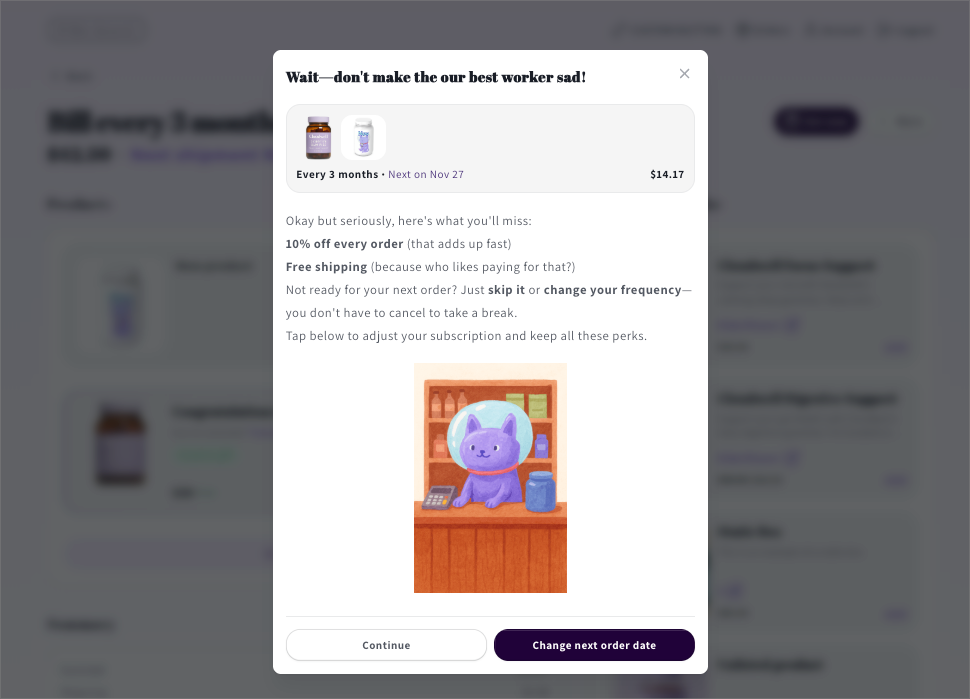
An example of a splash screen popup.
## When does the Splash Screen step happen during cancellation?
The splash screen appears immediately when a customer begins the cancellation process, before they select a reason or see any treatment offers. It gives you one focused moment to remind customers why staying subscribed matters.
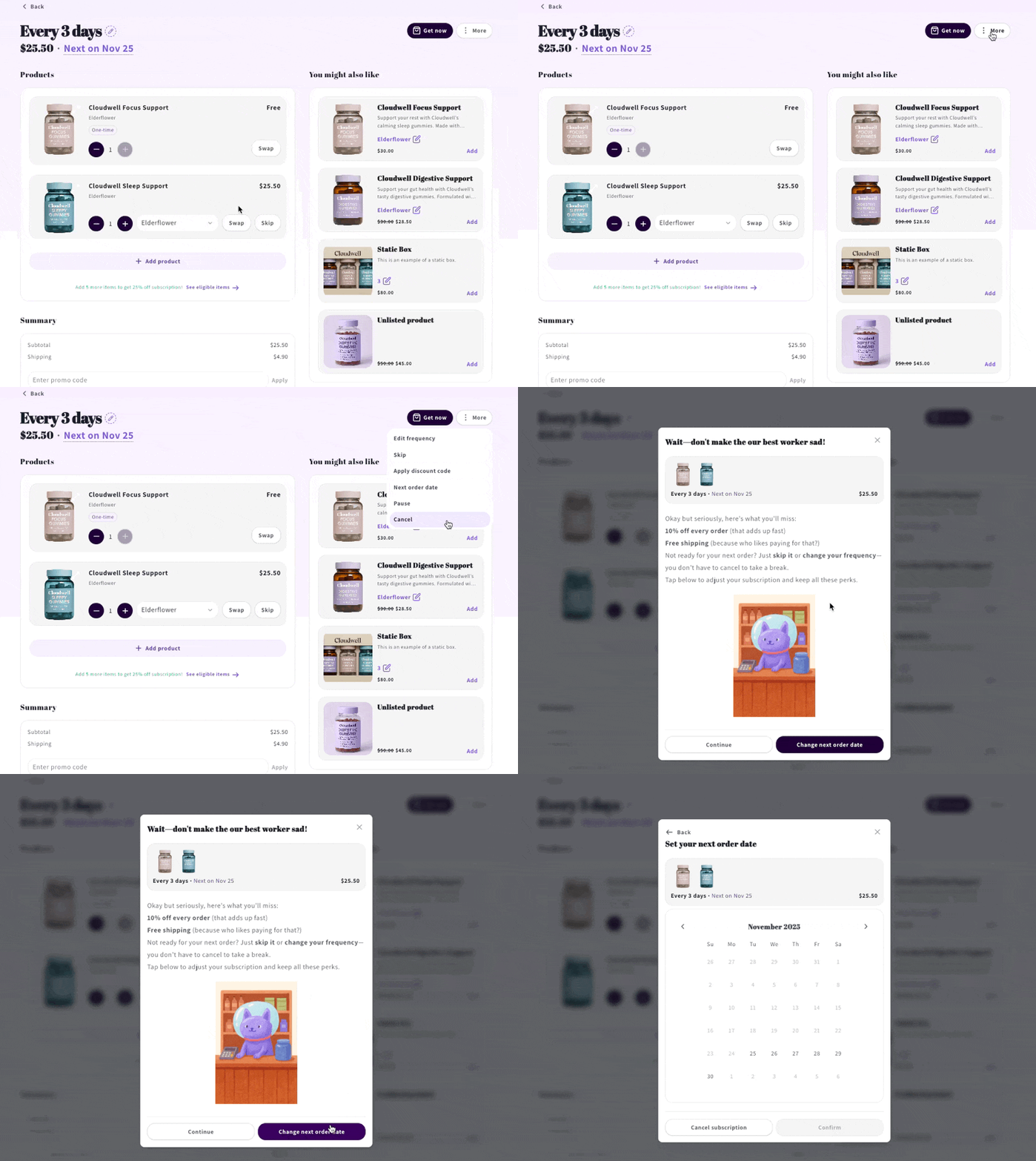
The Splash Screen appears when a customer goes to cancel. They can choose to **Continue** to the rest of the cancel flow steps, or take an immediate action configured in the Splash Screen settings.
This step supports:
- Custom titles and subtitles
- Video or image content via media URL
- Rich text descriptions with formatting options
- A Continue button that lets customers proceed to the next step
- An action you can configure as an alternative to cancellation
> Because the splash screen appears at the start of the flow, it's your opportunity to set a positive, solution-oriented tone before customers move deeper into cancellation.
## When to use the splash screen
Use the splash screen when you want to:
- **Highlight subscriber benefits** that customers might overlook, like exclusive perks, discounts, or early product access
- **Feature video content** from your founder, brand ambassador, or product team that creates emotional connection
- **Reinforce brand value** before customers make a final decision
- **Guide customers to alternative actions** like skipping an order or changing frequency instead of canceling outright
> [!TIP]
> The splash screen works best when the content is visual, concise, and speaks directly to why staying subscribed delivers ongoing value.
## How to add and configure a splash screen
### Step 1: Add the splash screen step to your flow
1. In your Skio dashboard, go to **Retain** **>** **Cancel Flow > Create new flow**.
2. Click and drag the **Splash Screen** node to your workspace. 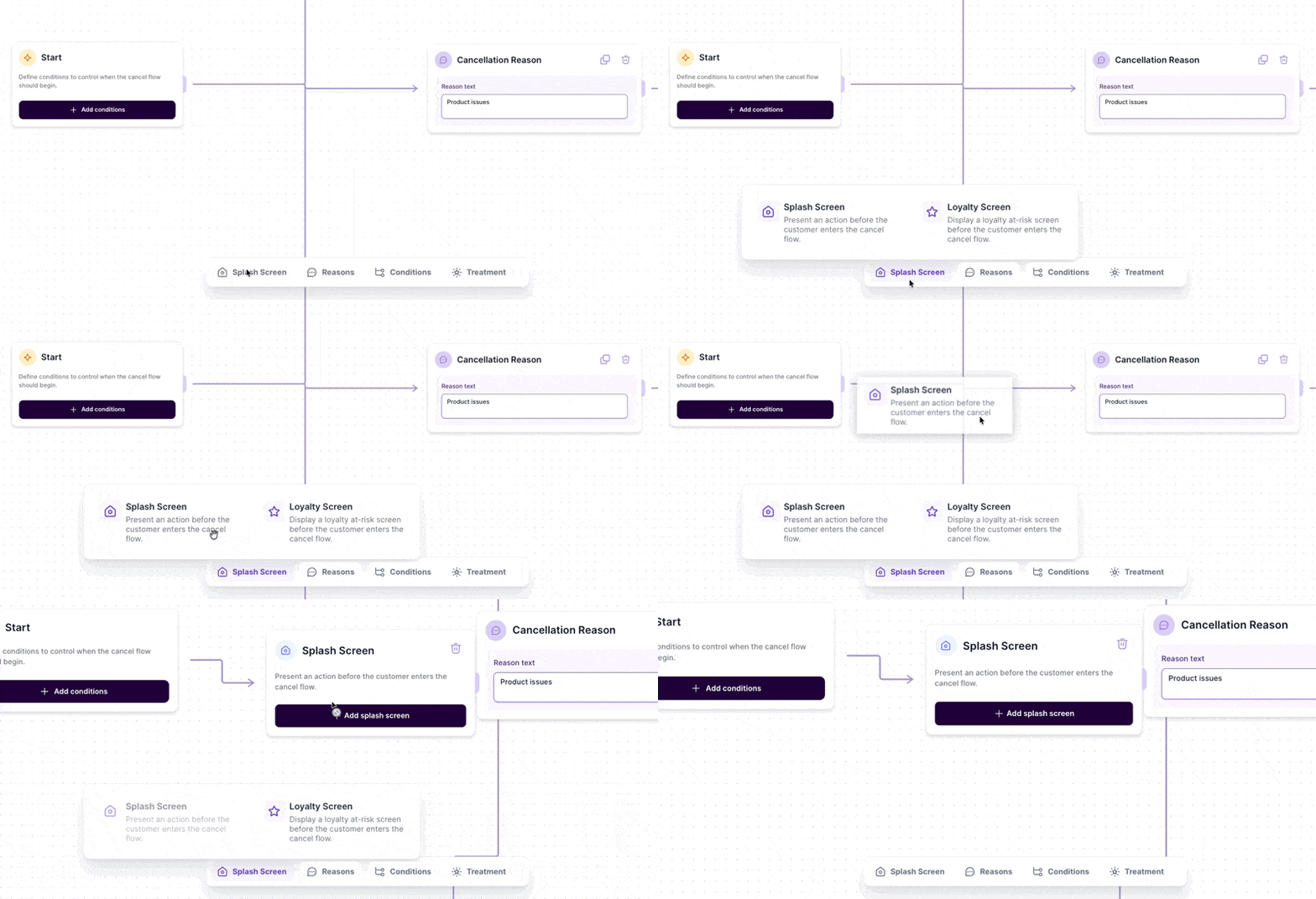
### Step 2: Configure the splash screen content
1. Click **Edit splash screen** in the node.
2. Enter a **Title** that clearly communicates the theme of your message (e.g., "Benefits of Product" or "Why Stay Subscribed").
3. Add an optional **Subtitle** for additional context (e.g., "There's a lot you're missing").
4. If you want to include a video or image, paste the URL in the **Media URL** field. For best results, use a 16:9 aspect ratio for videos.
5. In the **Description** field, write or format your message using the rich text editor. This is where you'll explain the value of staying subscribed or direct customers to take an alternative action.
6. Under **Action**, specify what happens when customers proceed. The default action is `skip next order`, but you can customize this to match your flow logic.
1. **Skip next order**
2. **Change next order date**
3. **Edit frequency**
4. **Swap product**
5. **Offer discount**
6. **Pause**
7. **Delay**
8. **Get now**
9. **Misc link**
10. **Apply credits**
7. Click **Save splash screen**.
The splash screen will now appear as the first step in your cancel flow.
### Example splash screen setup
**Title:** Wait—don't make the cat sad!
**Subtitle:** We worked so hard on these perks for you
**Description:**
```plaintext
Okay but seriously, here's what you'll miss:
10% off every order (that adds up fast)
Free shipping (because who likes paying for that?)
Early access to new drops before anyone else Surprise gifts throughout the year
Not ready for your next order? Just skip it or change your frequency—you don't have to cancel to take a break.
Tap below to adjust your subscription and keep all these perks.
```
****Example HTML code****
```xml
Don't lose out on
- Free shipping
- Access to exclusive content
- Reserved inventory
You've saved
{{ savedBySubscribing }}
by subscribing
```
## Splash Screen best practices
- [ ] **Emphasize specific subscriber benefits:** Be specific about what customers will lose if they cancel—compounded savings, member-only perks, free shipping, or early access to new products. Use dynamic visuals like animated graphics to represent benefits visually (e.g., a rising graph for escalating rewards or a calendar showing early access days).
- [ ] **Keep video content short and authentic:** If you're using video, keep it under 60 seconds. Feature your founder or a brand figure in a setting that reflects your brand personality. Open with warmth, acknowledge that needs change, and guide customers toward flexibility options like skipping or delaying instead of canceling. Thank subscribers for their loyalty and emphasize that you're here to adapt with them.
- [ ] **Make alternative actions clear:** State your call-to-action directly and make it easy to tap. For example: "Not ready for your next order? Simply tap here to **skip** your delivery right from this screen!" Simplify how customers can adjust their subscription without canceling.
- [ ] **Use empathetic, personal language:** Emphasize flexibility and reassure subscribers that managing their subscription is effortless. Use authentic, understanding language rather than transactional messaging. For example: "Life is always changing, and so can your subscription. Let's fine-tune your plan to perfection."
- [ ] **Align visuals with your brand identity:** Ensure your video or image uses consistent colors, fonts, and imagery that match your brand values. Film in settings that reflect your brand ethos—peaceful environments for wellness brands, vibrant studios for creative brands.
> Use a **16:9 aspect ratio** for video content to optimize mobile display.
### Action best practices
**Skip next order**
**When to use:** Customer has too much product and needs a one-time break without changing their schedule.
**How to implement:** Add "Skip next order" action in cancel flow. Customer skips upcoming order but stays on regular schedule afterward.
**Best practices:**
- **Watch out:** Overuse delays revenue without solving the root problem
- If customers skip frequently, they likely need a longer delivery interval
- Consider pairing with "Edit frequency" so customers fix their cadence instead of repeatedly skipping
---
### FAQ
#### Can I use the splash screen without video content?
Yes. The media URL field is optional. You can create an effective splash screen using only a title, subtitle, and description.
#### What happens if a customer skips the splash screen?
The customer proceeds immediately to the next step in your cancel flow, which is typically the reason selection step.
#### Can I A/B test different splash screen content?
Currently, the splash screen doesn't support built-in A/B testing. To test different messaging or video content, you'll need to create separate flow versions and manually compare performance in the analytics tab.
#### How do I know if my splash screen is working?
Monitor your cancel flow analytics to track how many customers proceed past the splash screen versus how many exit the flow or take an alternative action like skipping their next order. High drop-off rates may indicate that your splash screen content needs refinement.
Cancel Flow is a feature in Skio that helps you reduce churn by presenting targeted offers—like discounts, pauses, or product swaps—when customers attempt to cancel their subscription.